How to Fix IPTV Buffering Issues in 2026: The Ultimate Guide
How to Fix IPTV Buffering Issues in 2026: The Complete Guide
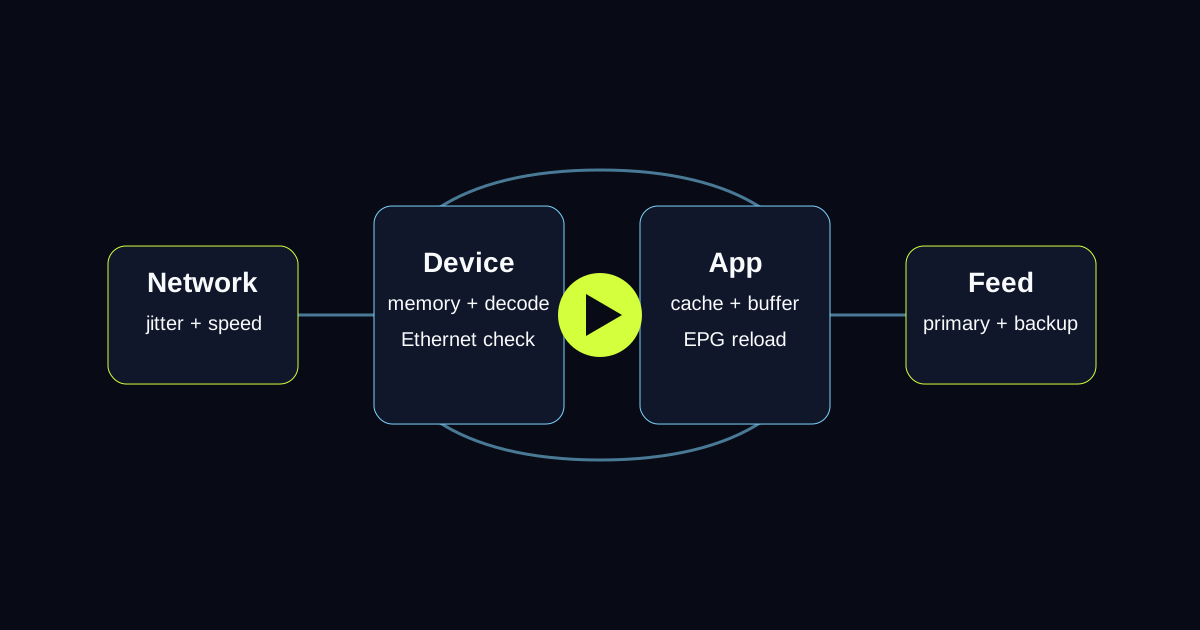
Buffering is the most common complaint from IPTV users — and it is almost always fixable. This guide covers every layer of the problem: your internet connection, your home network, your streaming device, your app, and the provider itself. Work through each section and most buffering issues will be resolved within 20 minutes.
Why Does IPTV Buffer? The Three Root Causes
IPTV buffering has three root causes: insufficient internet bandwidth, local network instability, and provider-side overload. Diagnosing which one is affecting you is the first step, because the fix for each is completely different.
Bandwidth issues show up as consistent stuttering regardless of channel. Network instability shows up as random freezes that recover after a few seconds. Provider overload is specific to popular live events — streams run fine on weekday afternoons but break down during Champions League finals or World Cup matches.
Knowing which pattern you see tells you where to focus your energy.
How Much Internet Speed Do You Actually Need for IPTV?
Speed requirements depend on your stream quality setting. Standard definition channels require around 3-5 Mbps per stream. HD (720p/1080i) channels need 10-15 Mbps per stream. Full HD 1080p live sports needs 15-20 Mbps. True 4K UHD streams require 25-40 Mbps per stream.
If you have multiple people streaming simultaneously, add those requirements together. A household running one 4K stream, one HD stream, and regular internet browsing should have at least 80 Mbps available.
The key figure is not just your headline download speed — it is your sustained speed. Many home connections can hit 100 Mbps in a speed test but drop significantly during peak hours between 7pm and 10pm when demand on local infrastructure increases.
Run a speed test three times: mid-morning, evening, and during a known busy period. If evening speeds are more than 30% lower than mid-morning, that explains evening buffering even if your plan looks fast enough on paper.
How to Check Your Internet Connection for IPTV Problems
Step 1: Run a proper speed test
Go to fast.com or speedtest.net and check download speed, upload speed, and ping. For live IPTV, ping matters almost as much as download speed. Aim for ping under 30ms. Consistently high ping above 80ms will cause stream freezes even when raw download speed looks adequate.
Also note the jitter value if your speed test shows it. Jitter above 15ms means your connection is inconsistent, which is particularly damaging for live streaming because IPTV cannot buffer ahead like on-demand services.
Step 2: Test at different times of day
One speed test is not representative. IPTV buffering during live events is often an evening-peak problem. Test at 8pm on a weekday to see what speed your connection actually delivers when everyone in the neighbourhood is streaming.
Step 3: Test with a wired connection
If you are using Wi-Fi, temporarily plug an Ethernet cable directly from your router to your streaming device and run the same test. If buffering disappears on Ethernet, your Wi-Fi setup is the problem, not your internet plan.
Fixing Wi-Fi Problems That Cause IPTV Buffering
Wi-Fi is responsible for a large share of IPTV buffering that gets blamed on internet speed or providers. The fix is usually straightforward.
Use the 5 GHz band, not 2.4 GHz. The 2.4 GHz band is congested in most homes and apartment buildings. The 5 GHz band is faster and less interfered with, though it has shorter range. If your router shows two network names — one normal and one with a "5G" label — always connect your streaming device to the 5G network.
Move your router closer to your TV, or use a powerline adapter. Every wall, floor, and large piece of furniture your Wi-Fi signal passes through reduces speed and increases latency. A powerline Ethernet adapter (around £20-£35) sends your internet through the mains wiring and provides a near-wired connection anywhere in your home without running cables.
Check for interference. Microwave ovens, baby monitors, and neighbouring Wi-Fi networks all share the 2.4 GHz frequency. Running the microwave while streaming will cause buffering on 2.4 GHz. This sounds minor but accounts for many unexplained short freezes.
Restart your router weekly. Consumer routers accumulate connection overhead over time. A weekly restart keeps performance consistent. Set a reminder or use your router's built-in schedule feature if it has one.
How to Fix IPTV Buffering on Your Streaming Device
Clear your app cache
Accumulated app cache slows down IPTV players on Android-based devices over time. On Firestick: Settings → Applications → Manage Installed Applications → find your IPTV app → Clear Cache. On Android TV boxes: Settings → Storage → Apps → select your IPTV app → Clear Cache.
Do this monthly as regular maintenance, not just when problems appear.
Free up device storage
If your streaming device has less than 500MB of free storage, apps begin to stutter. IPTV apps need working space to buffer incoming stream data. Delete unused apps, clear downloads, and aim to keep at least 1GB free.
Lower the stream resolution temporarily
This is a quick diagnostic test. In your IPTV app settings, reduce the default stream quality from 4K or Full HD to HD. If buffering stops completely, your device or connection cannot sustain the higher quality — and you can work on fixing that specifically.
Close background apps
Other apps running in the background consume RAM and sometimes network bandwidth. On Firestick, hold the home button and use the app switcher to close everything except your IPTV player.
Choosing the Right IPTV Player to Reduce Buffering
The app you use matters. Some IPTV players handle large playlists and high-bitrate streams better than others.
TiviMate Premium is the best choice for most Firestick and Android TV users. It uses efficient memory management, supports hardware decoding (which offloads video processing to your device's dedicated chip rather than the CPU), and handles large EPG data without slowing down playback. The premium licence costs around $5 per year and is worth it if you watch IPTV regularly.
IPTV Smarters Pro is the most commonly recommended app for beginners because it is available on more platforms including iOS and Smart TVs. It performs well for mixed live TV and VOD use. On older Firestick models, it can feel slightly slower than TiviMate for channel switching.
IboPlayer works particularly well on Smart TVs and set-top boxes that use portal-style activation. If you have a Samsung or LG Smart TV, IboPlayer is often the smoothest option.
If you are using a basic built-in app or a player that came pre-installed on a cheap box, switching to one of the above will often resolve buffering that has nothing to do with your internet or provider.
How to Tell If Your IPTV Provider Is the Problem
After ruling out your internet, network, device, and app, the remaining variable is the provider. Provider-side issues appear in specific patterns:
- Buffering only during popular live events (Champions League, World Cup, NFL) but not at other times
- Buffering on sports channels specifically but stable on news and entertainment
- Buffering that affects all users simultaneously (check the provider's Telegram/WhatsApp group)
- Channels that were working fine start buffering after a provider server update
A quality provider maintains enough server infrastructure and CDN capacity to handle peak loads. Oversold providers — those that sell more subscriptions than their infrastructure supports — will always deteriorate on busy nights.
The easiest way to test provider infrastructure is to request a free trial and watch a major live event during the trial period. If the trial streams freeze on match night, the paid subscription will too.
Quick-Fix Checklist for Immediate Buffering Relief
Work through this in order:
1. Restart your router and wait 2 minutes before reconnecting 2. Restart your streaming device (full power cycle, not just sleep) 3. Switch from Wi-Fi to Ethernet if possible, or move to 5 GHz Wi-Fi 4. Clear your IPTV app cache 5. Close all background apps 6. Try a different IPTV player (TiviMate if you are on Firestick/Android TV) 7. Lower stream quality temporarily to HD to test if it is a bandwidth issue 8. Test at a different time of day to isolate peak-hour provider problems
Most buffering issues are resolved by steps 1-5. If you reach step 8 and buffering only occurs during major live events, the provider's infrastructure is the limiting factor.
Start with a free trial to test LumIPTV stream quality, peak-hour stability, and app compatibility on your own setup before committing to a plan.
Tired of buffering, dropouts, or poor channel quality?
Try LumIPTV on your own device first. Free 24h trial, no credit card, and 3-day money-back support if you subscribe.