Set Up IPTV for World Cup 2026: Device Guide
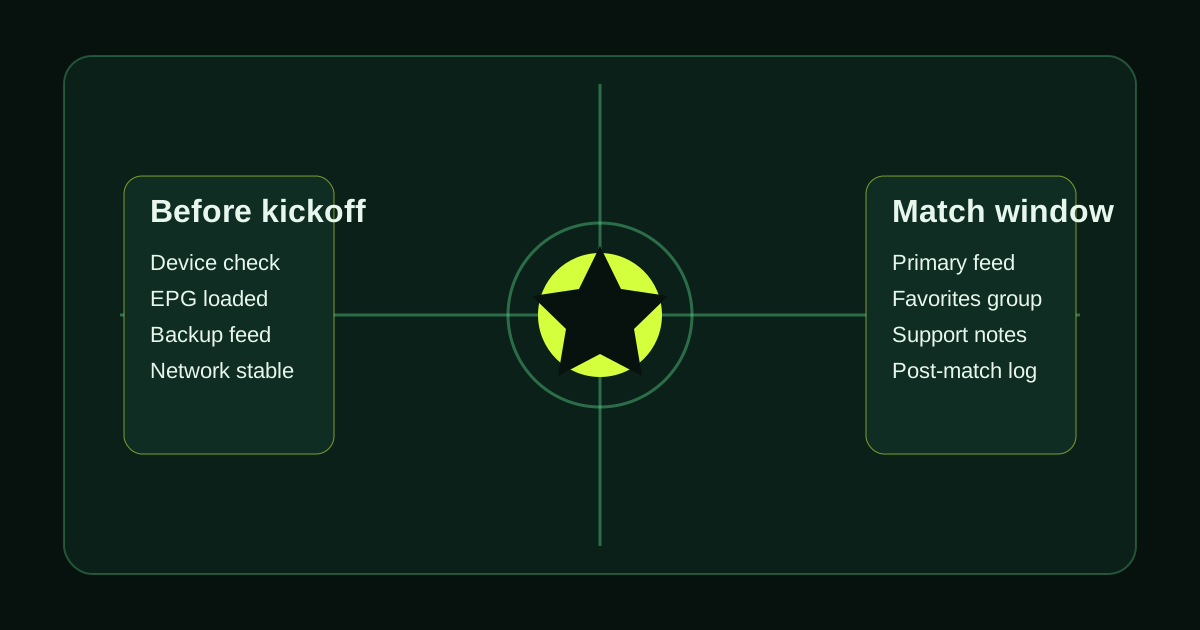
The World Cup is underway. This guide gets IPTV working on your device so you can test the setup before the next match window.
What You Need Before You Start
1. Your IPTV credentials — from your provider: server URL, username, password (or an M3U URL) 2. Your device — Firestick, Android TV box, Smart TV, iPhone, or Android phone 3. A stable internet connection — at least 10 Mbps for HD, 25 Mbps for 4K
If you have not chosen a device yet, see the ranked guide to the best devices for watching World Cup 2026 on IPTV first — it covers every option from Firestick to Apple TV with World Cup-specific performance notes.
The setup steps vary slightly by device. Find your device below.
---
Firestick (All Models) — 10 Minutes
Step 1: Enable app installation from unknown sources Settings → My Fire TV → Developer Options → Install Unknown Apps → ON
This is required because TiviMate and IPTV Smarters are not in the Amazon App Store.
Step 2: Install Downloader Search "Downloader" in the Firestick search bar — it is in the Amazon App Store. Install it.
Step 3: Download your IPTV app via Downloader
For TiviMate (recommended): Open Downloader and enter the TiviMate APK URL from your provider or download from troypoint.com/tivimate.
For IPTV Smarters Pro: Open Downloader and enter the IPTV Smarters APK URL. Alternatively, search "IPTV Smarters" in the App Store — it may appear there on newer Fire OS versions.
Step 4: Install and open the app When Downloader finishes, tap "Install". Then tap "Open" to launch.
Step 5: Add your IPTV subscription
In TiviMate:
- Add Playlist → Xtream Codes
- Enter your server URL, username, and password
- Wait for playlist to load (30–90 seconds)
- Done — channels appear in the EPG view
In IPTV Smarters Pro:
- Add User → Xtream Codes API or M3U URL
- Enter credentials
- Load channels
Step 6: Test before the next match Navigate to a live sports channel such as BBC One HD, Sky Sports, or Fox Sports where available. If it plays, your app setup is working. Our World Cup 2026 channels guide lists major broadcaster names by region — use it to build your World Cup favourites group after setup.
Total time: approximately 10 minutes
---
Samsung Smart TV (Tizen OS) — 12 Minutes
Samsung's Tizen OS supports sideloading APKs via a developer mode.
Step 1: Enable developer mode On your Samsung TV: Smart Hub → Apps → type "12345" on the remote when in the Apps screen → Developer Mode ON → enter your PC's IP address.
Step 2: Install Smart TV app (alternative — App Store method) Search "IPTV Smarters" in the Samsung App Store — it is available in many regions. Install directly.
Or search for "OTT Navigator" or "GSE Smart IPTV" — both are available for Tizen.
Step 3: Launch app and add playlist Enter your IPTV credentials (Xtream Codes or M3U URL). Channels load in 60–90 seconds.
Recommended app for Samsung: IPTV Smarters Pro or OTT Navigator. Both handle large channel lists (broad live TV categories) better than basic Samsung apps.
---
LG Smart TV (WebOS) — 10 Minutes
Option 1: LG Content Store Search "IPTV Smarters" or "GSE Smart IPTV" in the LG Content Store. Both are available for WebOS 4.0+.
Option 2: IboPlayer IboPlayer has a dedicated WebOS app. Go to iboplayer.com, register, and follow the TV activation steps. IboPlayer is particularly popular on LG because its interface scales well for TV screens.
Step 2: Add credentials Same as above — enter your server URL and login details.
---
Android TV Box (Any Brand) — 8 Minutes
Android TV has the widest app selection of any IPTV platform.
Step 1: Install TiviMate from the Play Store Search TiviMate in the Google Play Store on your Android TV box. Install it directly.
Step 2: Open TiviMate and add playlist Add Playlist → Xtream Codes → enter your credentials. Done.
Step 3 (optional): Enable TiviMate Premium TiviMate has a free version but the Premium version ($4.99 one-time in Play Store) adds multi-screen, catch-up, and recording. Worth it for the World Cup.
---
iPhone or iPad — 5 Minutes
App to install: IPTV Smarters Pro (App Store, £2.99) or GSE Smart IPTV (App Store, free/paid).
Step 1: Download from the App Store. Step 2: Open app → Add Account → enter credentials. Step 3: Connect your phone/iPad to a TV via AirPlay or HDMI adapter for the big screen.
---
Android Phone or Tablet — 5 Minutes
App: IPTV Smarters Pro (Play Store, free) or TiviMate (Play Store, TiviMate is phone-compatible too).
Step 1: Install from Play Store. Step 2: Add playlist → enter credentials. Step 3: Cast to TV via Chromecast or connect with HDMI cable for main screen viewing.
---
The One Setup Step Everyone Forgets
After loading your playlist, verify your EPG (Electronic Programme Guide) is working and showing correct match times.
In TiviMate: Settings → EPG → Update EPG. If match times show in a different timezone, go to Settings → General → Timezone and set your local timezone.
Incorrect EPG times are the most common complaint before a tournament. Fix it now, not at 17:57 when the 18:00 kick-off is loading.
For a match-day readiness checklist — covering provider infrastructure, network optimisation, and app settings — see the World Cup 2026 anti-buffering guide. Running that checklist 30 minutes before each kickoff is the best insurance against freezes.
Start with a free trial so you can run through this setup and test everything while the World Cup is underway.
Tired of buffering, dropouts, or poor channel quality?
Try LumIPTV on your own device first. Free 24h trial, no credit card, and 3-day money-back support if you subscribe.