How to Watch World Cup 2026 Without Buffering on IPTV
The worst moment in sports viewing: a penalty shootout at 120 minutes, and your stream freezes. Then it spins. Then it resumes 4 seconds later — after the ball went in.
Buffering on IPTV during the World Cup is not random. It has specific causes and specific fixes. This guide covers every layer of the problem — from your internet connection to your app settings — so you can reduce the risk of freezes across the tournament.
Why IPTV Buffers More During Major Events
IPTV servers experience their highest load during simultaneous major sporting events. When 50,000+ subscribers all tune into the same channel at kick-off of a World Cup final, the infrastructure has to scale.
What causes buffering: 1. Provider server overload — too many subscribers, not enough server capacity 2. Your internet connection — insufficient speed, high latency, packet loss 3. Your home network — Wi-Fi congestion, router limitations 4. Your device — underpowered hardware, app cache buildup 5. Your app settings — wrong decoder or buffer size configuration
Each layer needs to be addressed separately.
Layer 1: Choose a Provider With Anti-Surge Infrastructure
This is the most important factor and the one most people ignore.
A reliable provider runs multiple load-balanced server nodes and activates additional capacity for known high-traffic events like the World Cup. Ask your provider directly before the next major match:
- Do you add server capacity during major tournaments?
- Do you offer backup streams for high-demand matches?
- What monitoring or incident notes can you share from the last major football final?
A provider that cannot answer these questions clearly is not prepared for World Cup traffic.
If you are not sure about your current provider, test during a current major event — an evening Champions League or Premier League match. If it buffers now, it will definitely buffer during the World Cup. See our IPTV vs cable cost comparison for World Cup 2026 for what premium infrastructure looks like versus underprepared services.
Layer 2: Fix Your Internet Connection
Speed: The minimum for HD 1080p is 10 Mbps. For 4K, 25 Mbps. But raw speed is not the whole story.
Latency: Keep ping under 30ms. High latency (100ms+) causes stuttering even on fast connections because packets arrive out of order.
Packet loss: Even 1% packet loss causes visible stream artefacts and pauses. Test with a tool like PingPlotter or fast.com's advanced test.
The fix: Use Ethernet. A wired connection eliminates Wi-Fi packet loss and reduces latency by 10–30ms. Buy a £7 USB-to-Ethernet adapter for your Firestick 4K Max and run a cable from your router.
If Ethernet is not possible, use the 5GHz Wi-Fi band (not 2.4GHz) and position your router within line of sight of your streaming device.
Layer 3: Optimise Your Home Network
Router placement: The router should be central in your home. Routers placed in corners, cupboards, or behind TVs lose 30–50% of their effective range.
QoS (Quality of Service): Most modern routers support QoS settings that prioritise traffic from specific devices. Set your Firestick or streaming device to high priority — this prevents other household devices (phones, laptops, smart appliances) from stealing bandwidth during a match.
2.4GHz vs 5GHz: 2.4GHz travels further but is heavily congested in most homes. 5GHz is faster and less congested — always connect your IPTV device to 5GHz if Ethernet is not available.
Router restart: Restart your router 30 minutes before a major match. Routers accumulate memory usage and connection table bloat over time. A fresh restart improves throughput.
Layer 4: Optimise Your Streaming Device
Clear app cache before a major match: In Firestick Settings → Applications → Manage Installed Applications → your IPTV app → Clear Cache. Do this for TiviMate and IPTV Smarters while the World Cup is underway.
Close background apps: On older devices, background apps compete for RAM. Hold the Home button on your Firestick remote and close all background apps before starting a World Cup match.
Keep the device cool: Streaming devices generate heat. The Firestick and similar sticks throttle performance when hot. Ensure there is airflow around the device — do not jam it behind a TV where heat builds up. HDMI extender cables (£3) move the stick into open air.
Use hardware decode: In TiviMate: Settings → Player → Decoder → Hardware. Hardware decode uses the chip's dedicated video engine instead of software decode, which uses far less CPU and produces fewer buffering events for H.265 streams. If your device still struggles after enabling hardware decode, check the ranked device guide for World Cup 2026 — it lists which hardware handles 4K H.265 without throttling.
Layer 5: App Buffer Settings
TiviMate and IPTV Smarters allow you to adjust the buffer size — the amount of stream data loaded ahead of playback.
For live sports, a slightly larger buffer (3–5 seconds) prevents small network hiccups from causing visible stuttering. The tradeoff is a slightly longer initial load time and 3–5 seconds behind real-time.
In TiviMate: Settings → Player → Buffer Size → set to 3–5 seconds. In IPTV Smarters Pro: Settings → Player → Cache size → increase to Medium or Large.
The Pre-Match Checklist
Run this 30 minutes before every major World Cup match:
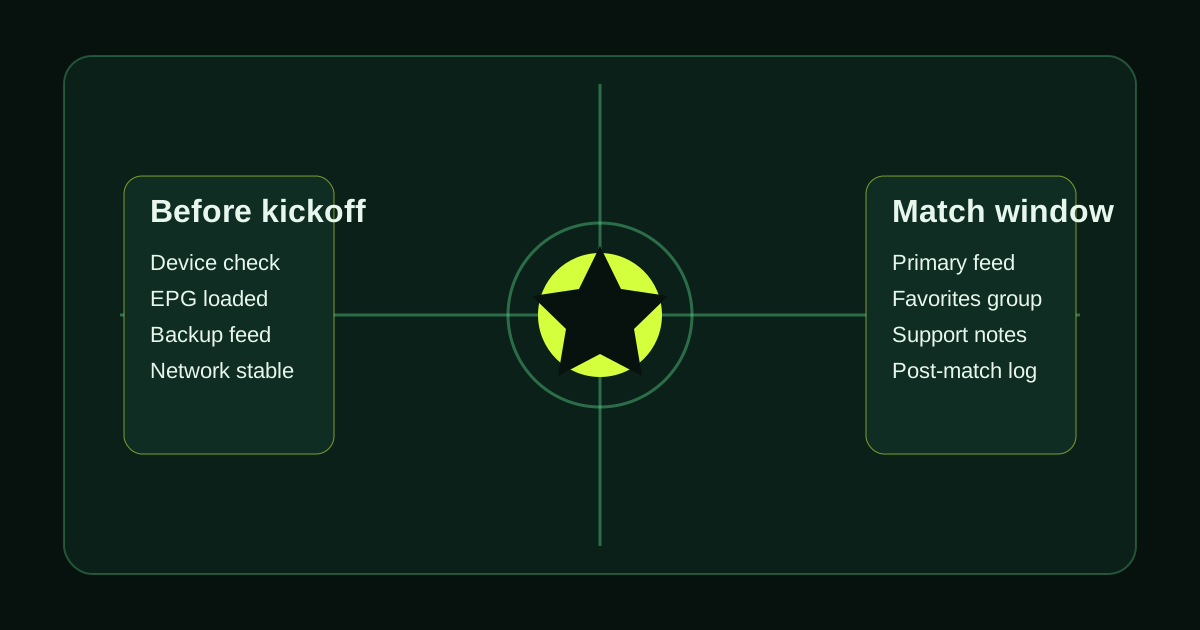
- [ ] Router restarted within the last 24 hours
- [ ] Streaming device connected via Ethernet (or 5GHz Wi-Fi if not possible)
- [ ] App cache cleared
- [ ] Background apps closed
- [ ] Hardware decode enabled in app settings
- [ ] 4K channel tested and confirmed playing at target resolution
- [ ] Backup stream channel identified (in case primary buffers)
If you complete this checklist, you reduce the most common buffering risks during heavy World Cup traffic days. Before running it, make sure your IPTV app is correctly configured — the World Cup 2026 device setup guide covers every major platform.
Test your setup with a free trial while the World Cup is underway.
Tired of buffering, dropouts, or poor channel quality?
Try LumIPTV on your own device first. Free 24h trial, no credit card, and 3-day money-back support if you subscribe.